

Computers contain delicate parts, valuable data, and accessories that can be damaged if not packed carefully.
Knowing how to pack computers for moving helps protect your equipment while keeping monitors, cables, and other components organized, and this article covers the most important steps to follow.
Tips To Pack Computers For Moving
Before you pack computers for moving, take time to prepare each system instead of boxing everything right away. Shut the computer down completely, unplug it from the wall, and disconnect monitors, keyboards, mice, speakers, external drives, and other accessories.
Allow the computer to cool before packing it, especially if it has been running for several hours. It is also a good idea to back up important files before the move so you have another copy of your information if something unexpected happens.
Organization is just as important as physical protection. If you’re unsure where each cable belongs, take a picture of the connections before unplugging anything.
Then loosely coil the cords, secure them, and place them in labeled bags. Avoid wrapping cables tightly around the computer or monitor because this can put unnecessary pressure on ports and connectors.
Preparing each computer system before it goes into a box makes it much easier to protect, transport, and reconnect at the new location.
Following a few basic tips for packing your boxes can also help keep everything organized and protected during the move.
Protect Monitors With Proper Padding
Computer monitors need extra attention because their screens can crack or scratch from pressure and impact. When you pack computers for moving, remove the monitor stand if the manufacturer designed it to detach safely.
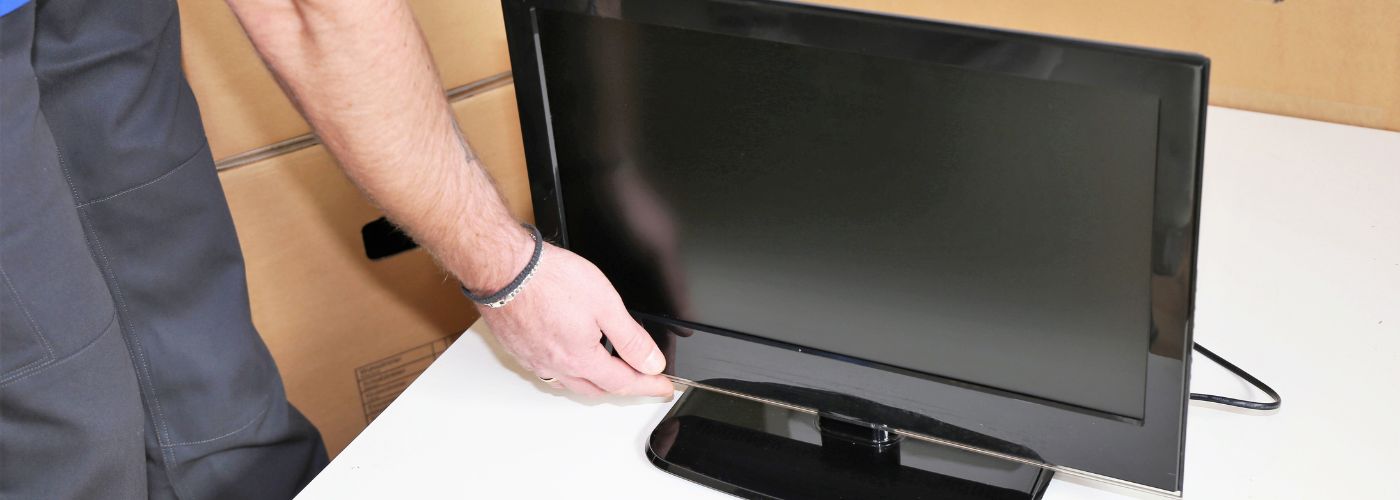
Cover the screen with a clean, soft material before adding protective padding around the entire monitor. Avoid placing tape directly on the screen because adhesive can leave residue or potentially damage certain screen coatings.
After covering the monitor, use suitable cushioning around the front, back, corners, and edges. Place it in a box with enough room for padding, but not so much that the monitor can shift excessively.
Fill empty spaces with appropriate packing material, but don’t pack so tightly that it puts pressure on the display. Keep the monitor upright whenever possible, rather than laying heavy objects on top of it.
Getting help with packing can also be useful when a move includes computers and other belongings that require careful handling. Pack a monitor so its screen is protected from direct impact and unnecessary pressure throughout the move.
Use the Original Computer Box When Available
If you still have the original packaging, it can be one of the most useful options for packing computers for moving. Computer manufacturers generally package their products with inserts shaped around the specific device.
These inserts help prevent movement while creating space between the computer and the outside of the box. Original packaging can be especially useful for desktop towers, monitors, all-in-one computers, and other equipment with unusual dimensions.
Original packaging can provide a close fit that is difficult to recreate with a standard moving box. Before using an old box, however, check its condition carefully. Cardboard that has absorbed moisture, developed tears, or become weak over time may no longer provide enough support.
If the original box is damaged or unavailable, choose a sturdy box slightly larger than the equipment and create a protective cushioning layer around every side. Use similar precautions when packing fragile items that need extra protection from movement and impact.
Keep Computer Components Secure During Transport
A desktop computer contains components that can be sensitive to hard impacts and excessive movement. When you pack computers for moving, make sure the computer tower has enough cushioning to prevent it from sliding around inside its box.

Choose a strong box that can support the computer’s weight and reinforce the bottom with packing tape before placing the equipment inside. Avoid leaving large open spaces that let the tower move side to side during transport.
Also organize accessories instead of dropping them loosely into the same box. Place the keyboard, mouse, cables, power adapters, and other smaller items in separate protective wrapping or clearly marked bags.
External hard drives and other sensitive storage devices deserve additional cushioning because a strong impact could damage them.
Businesses relocating several computers may also need to plan how to move their office equipment so workstations and related items stay organized.
Keeping every component secure and separated reduces unnecessary movement and prevents heavier pieces from striking smaller accessories.
Keep Computers Away From Heat and Moisture During Transit
Environmental conditions also matter when you pack computers for moving. Keep electronics away from water, excessive moisture, and extreme temperatures whenever possible. Do not place a computer box next to liquids, cleaning products, or containers that could leak.
If rain is expected on moving day, keep electronic equipment covered while carrying it between the building and the moving vehicle.
Keep computers in a dry, reasonably controlled environment rather than leaving them exposed to harsh conditions for extended periods. This is especially important when belongings will spend significant time in transit or temporary storage.
After arriving at the new location, give equipment time to adjust if it has been exposed to significant temperature changes before turning it on. This type of planning becomes even more important when you need to keep belongings safe during a long distance move.
Clearly Label Boxes Containing Computers and Electronics
Clear labels make a major difference when you pack computers for moving because they tell anyone handling the boxes that the contents require extra care.
Mark the box as containing electronics and identify the room or workstation it belongs to. If a computer system includes several boxes, use a simple numbering system so you can easily match the tower, monitor, accessories, and cables after arriving at the new location.
Labels also make unpacking more efficient. Instead of opening several boxes to locate a power cable or monitor, you can quickly identify which package contains each part of the system.
Keep labels visible on more than one side so they can still be read when boxes are stacked.
A simple, consistent labeling system helps prevent confusion and makes computer equipment easier to identify and handle throughout the move.
Keeping boxes clearly organized can also make unpacking faster once everything reaches the new location.